Asset System
The 3DStreet Asset System is the home for everything you've added to your account: your own uploaded 3D models, custom images, videos, and other media that your scenes reference. It's available in both the Editor and the Generator, so anything you upload once is ready to use wherever you're working.
One panel for all your assets
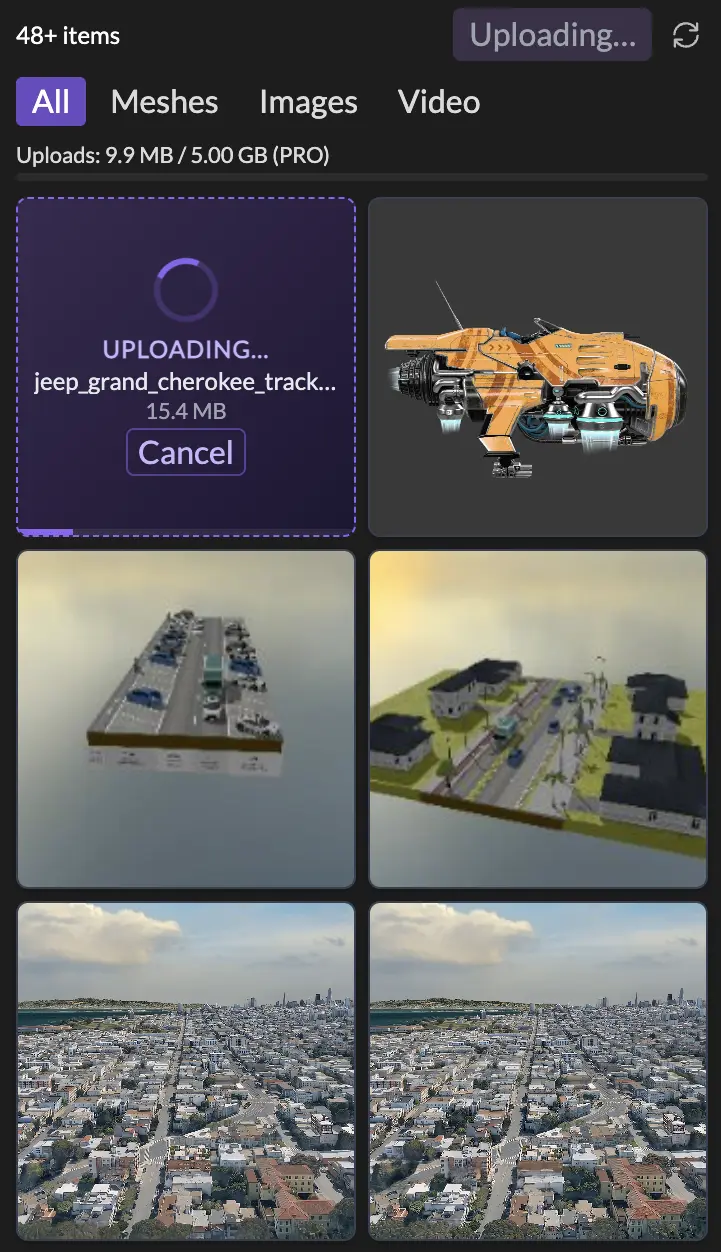
The Assets panel on the left side of the editor (and generator) gives you a single, browseable view of every asset in your account. From the panel you can:
- Filter by type (show only meshes (
.glbmodels), images, or videos to quickly narrow the list) - Drag any asset directly into the scene to place it where you drop it
- Open an asset's details to rename it, preview it, see metadata and attribution, or remove it
Because the panel is shared across all your scenes, anything you upload once is available everywhere, with no per-scene re-importing and no copy-pasting URLs between projects.
Uploading custom assets
Drag any supported file from your computer onto the editor viewport or onto the Assets panel itself. Supported formats:
| Type | Formats |
|---|---|
| 3D models | .glb |
| Images | .jpg, .png, .webp |
| Gaussian splats | .ply, .splat, .spz |
The file is uploaded to your account in the background. You'll see a progress indicator in the Assets panel sidebar while the upload runs; the asset becomes draggable as soon as it's ready. For step-by-step instructions on the editor flow, see Adding Custom Models and Images to a Scene.
Gaussian splat files are treated as first-class assets: they upload, preview, and drag into a scene just like a 3D model. You can also generate a splat from your own photo or video in the AI Generator. See 3D Gaussian Splats for details.
Asset details
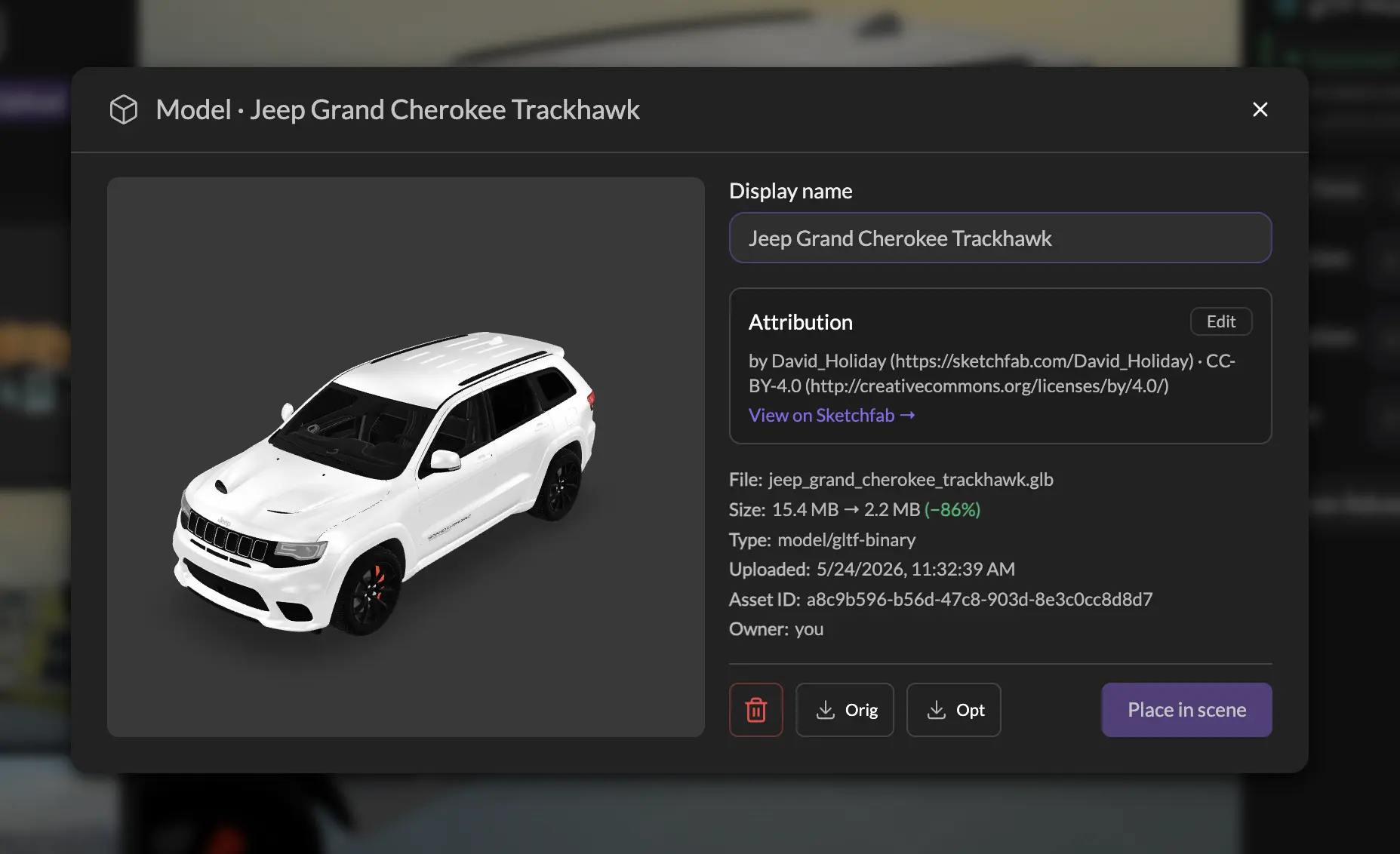
Click any custom asset's thumbnail in the Assets panel to open its details modal. From there you can rename the asset, preview it in an embedded viewer, see its file size and attribution metadata, download the original file, or delete it from your account.
Visibility
Each asset has a visibility setting that controls who can see it. New uploads default to public. You can change an asset between public and private from its details modal at any time.
Storage and quotas
Each account has a storage quota for uploaded assets. A quota indicator at the bottom of the Assets panel shows how much of your quota is used. Pro and Team plans include significantly more storage (see the pricing page for the storage quota included with each plan).
Per-file size limit is 50 MB for .glb uploads. Files larger than that can still be previewed in your current session (useful for very large photogrammetry scans), but won't persist to the cloud.
If you reach your quota, new uploads run in local-only mode until you free up space (by deleting old assets) or upgrade your plan.
Automatic GLB optimization
3D model optimization is normally a tedious, expert-only step that sits between "I have a model" and "it loads fast in a browser." The 3DStreet Asset System gives every user push-button access to the same leading-edge compression techniques used by professional 3D pipelines, and runs them automatically on every upload:
- Texture compression: textures are re-encoded to WebP at quality 0.85 and resized down to a maximum of 2048×2048
- Mesh deduplication and pruning: unused data, duplicate vertices, and orphaned nodes are removed
- Scene flattening and mesh joining: the node hierarchy is flattened and compatible meshes are joined to reduce draw calls
- Material palette atlasing: small solid-color materials are merged into a palette texture to further cut draw calls
- Draco mesh compression: geometry is compressed with Draco for dramatically smaller files and faster loading
- Bail-if-bigger: if the optimized output is larger than the original (common when the file is already well-optimized), 3DStreet keeps the original instead
- Already-optimized detection: files that already use Draco + WebP skip the pipeline entirely
Both the original and the optimized versions are stored. Scenes load the optimized version by default to increase scene download speeds and improve render performance. The original is kept so you can re-download it, share it, or re-process it later. Only the original file counts against your storage quota, the optimized derivative is on us.
Attribution
When you upload a .glb, 3DStreet automatically extracts attribution metadata from the file (title, author, source, and license, if present). This metadata is visible in the asset details modal and is preserved with the asset, so credits travel with the model even as you reuse it across scenes.
Related
- Adding Custom Models and Images to a Scene: the editor-side how-to
- 3D Model Library: the built-in library catalog
- 3D Gaussian Splats: generating and using splats