AI Agents (MCP)
3DStreet implements the Model Context Protocol (MCP), an open standard that lets AI agents call tools in external applications. With it, an agent such as Claude Desktop or Claude Code can drive a scene running live in your own browser tab: creating objects, editing managed streets, moving the camera, taking snapshots, and reading the scene graph, all while you watch each action happen in the editor.
This is an early, experimental feature aimed at automating repetitive or complex design work. It is entirely opt-in and stays out of the way unless you turn it on.
MCP support is new and evolving. Tool names and behavior may change. Share feedback in Discord.
How it works
3DStreet talks to your AI client through a small local relay. The pieces are:
- Your AI client (Claude Desktop, Claude Code, or another MCP client) where you type instructions.
- The
3dstreet-mcprelay, a local MCP server you install once. It runs on your own machine and bridges your AI client to the browser. - The 3DStreet editor tab, which pairs with the relay over a local WebSocket and executes the tools.
Your AI client sends a tool call to the relay, the relay forwards it to your paired editor tab, and the editor performs the action and returns the result.
Setup
- Install the relay. Add the
3dstreet-mcppackage as an MCP server in your AI client. See the package README for client-specific configuration. - Start the relay. On startup it prints a pairing URL, typically
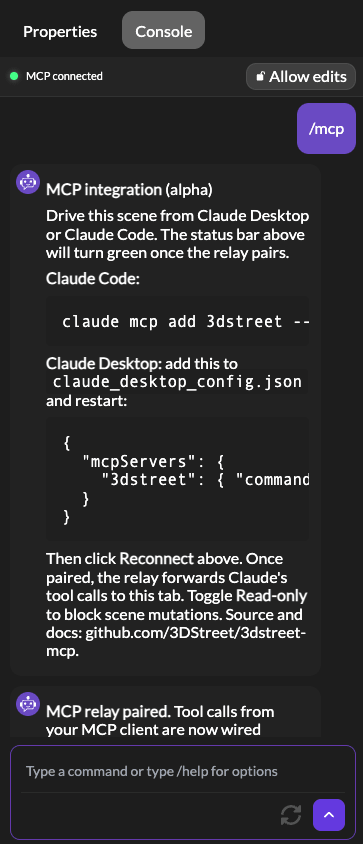
https://3dstreet.app/#mcp. - Open the pairing URL in your browser. 3DStreet automatically switches to the Console tab, opens the MCP status bar, and connects. If your relay runs on a non-default port, the URL includes it (for example
https://3dstreet.app/#mcp=12345). - Confirm the connection. When pairing succeeds, the Console posts a confirmation message and the status bar shows a connected indicator. From there, continue in your AI client.
You can also pair manually by typing /mcp in the Console and clicking Reconnect.
What an agent can do
Once paired, the agent has access to a set of tools covering reads, mutations, and meta actions, including:
- See the scene — take a snapshot that the agent can actually look at (see below).
- Read the scene — inspect the scene graph, a selected entity, available models, and the current managed street.
- Create and edit entities — add objects, update their properties, and edit managed-street segments.
- Control the view — focus the camera on an entity.
- Set scene context — update the scene title and set the geographic location.
- Undo and redo — step the editor's history backward and forward.
Every action an agent takes flows through the same command system as manual edits, so it streams into the Console as a command pill and can be undone or replayed like any other change. See the Console for how command history works.
Visual feedback: the agent can see your scene
The most powerful part of the integration is that the agent isn't working blind. The takeSnapshot tool renders the current view and returns the image to your AI client as a real picture, not a description, so a vision-capable model like Claude can look at the rendered scene and evaluate it.
This closes a feedback loop that pure data tools can't: the agent makes a change, takes a snapshot, sees the result, and adjusts. It can check whether a bike lane reads clearly, whether objects are spaced naturally, or whether a crossing looks right, then iterate, the same way you would by eye.
takeSnapshot accepts a few options:
- View preset —
focus(the current camera view, default),birdseye,straightOn, orcloseup. - Focus entity — an optional entity to frame before capturing.
- Caption — optional text to label the snapshot in the chat.
Pair it with focusCamera to frame a specific entity first, then snapshot, for a deliberate look-and-refine workflow.
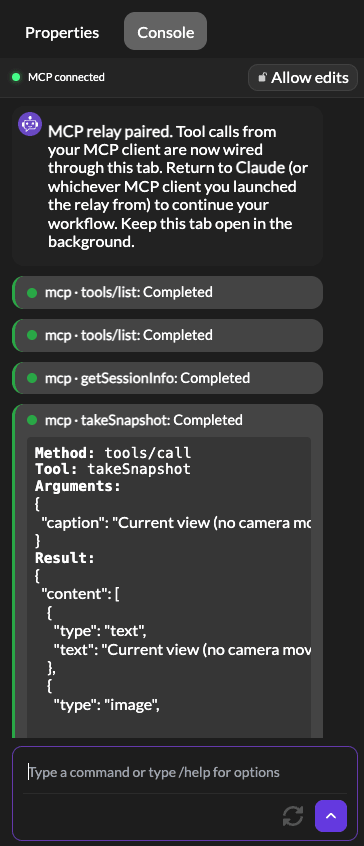
The actions taken by the AI agent through MCP are displayed in the Console. You can expand any completed action by clicking on it, revealing the contents of the tool call and response.
Privacy and security
MCP is designed to be safe and unobtrusive:
- Hidden by default. No MCP interface appears unless you explicitly opt in with the pairing URL or the
/mcpcommand. Users who never install the relay see no change to the editor. - Local only. The relay binds to
127.0.0.1(your own machine) and is not reachable from the network. - Origin allowlist. Only approved 3DStreet origins can pair with the relay.
- One tab at a time. A single editor tab can be paired at once.
- No credentials over the connection. No authentication tokens are passed across the WebSocket. Saving your scene to the cloud remains a normal, manual action using the editor's Save button.
Related
- Console — the natural-language interface and command history that MCP shares
3dstreet-mcpon npm — the relay package and setup instructions- Product Update: Custom Asset Uploads, Video-to-Splat, and Bollard Buddy for iOS