Editing Objects
3DStreet has powerful editing capabilities. You can move, rotate, and resize objects, as well as change their type and add advanced properties. You can also duplicate, add, and delete objects.
Editing Object Properties
There are many properties you can edit for any object in the scene. Some properties can be edited through the toolbar, and some require you to edit the properties panel.
Using the Toolbar to Change Position and Rotation
The quickest way to move and rotate objects in your scene is using the toolbar and arrow controls.
Move Tool with Arrows (Single Axis)
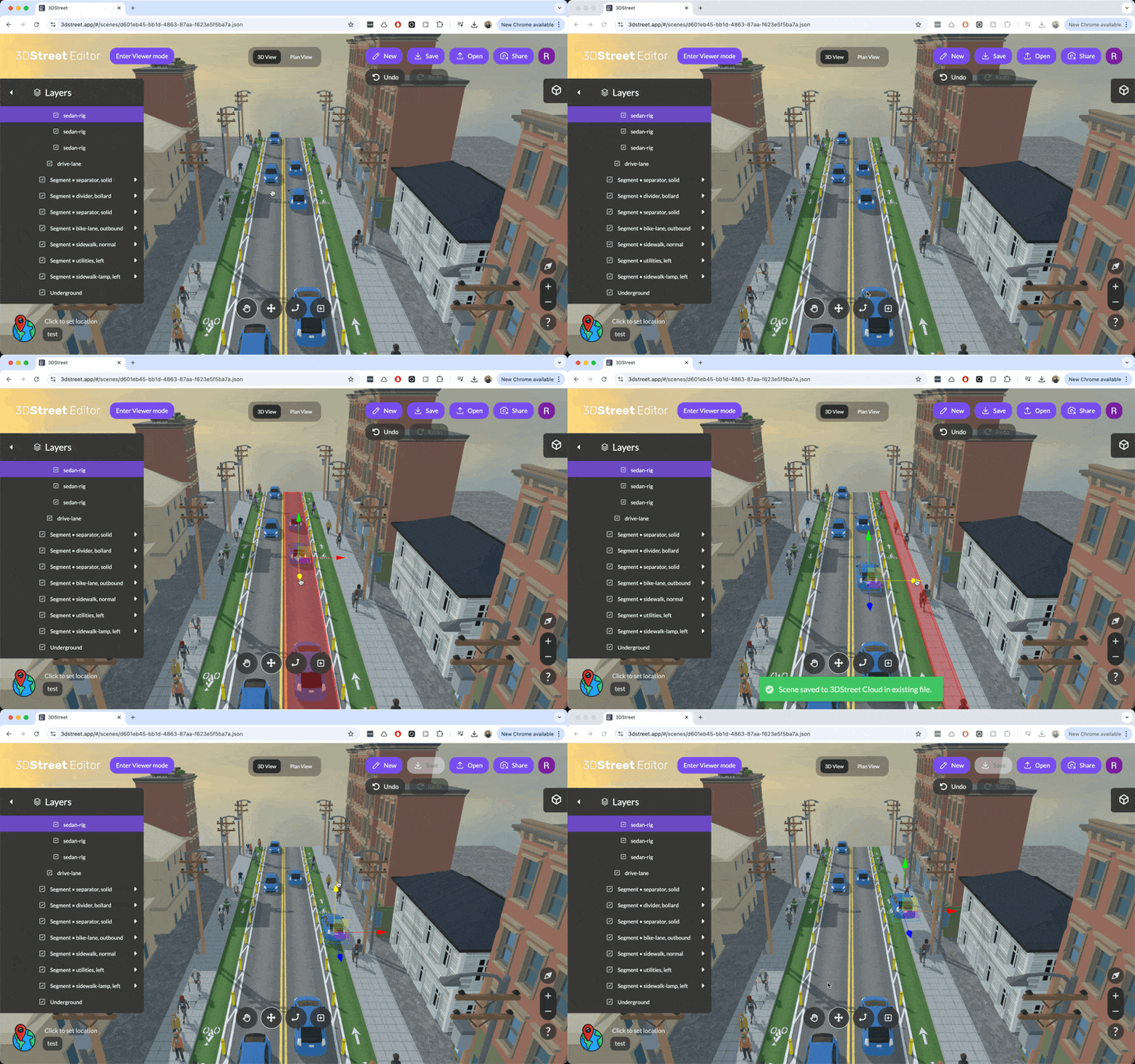
To adjust the position of an object, click the Move Tool icon, click on an object to select it (if not already), then click and drag on the red, green or blue arrows to move it.
This is the recommended way to move objects. You can move an object in a particular direction by clicking a specific arrow and dragging it. Press the o keyboard shortcut to toggle the axis arrows' alignment between object and world space.
Move Tool with Squares (2 Axes)
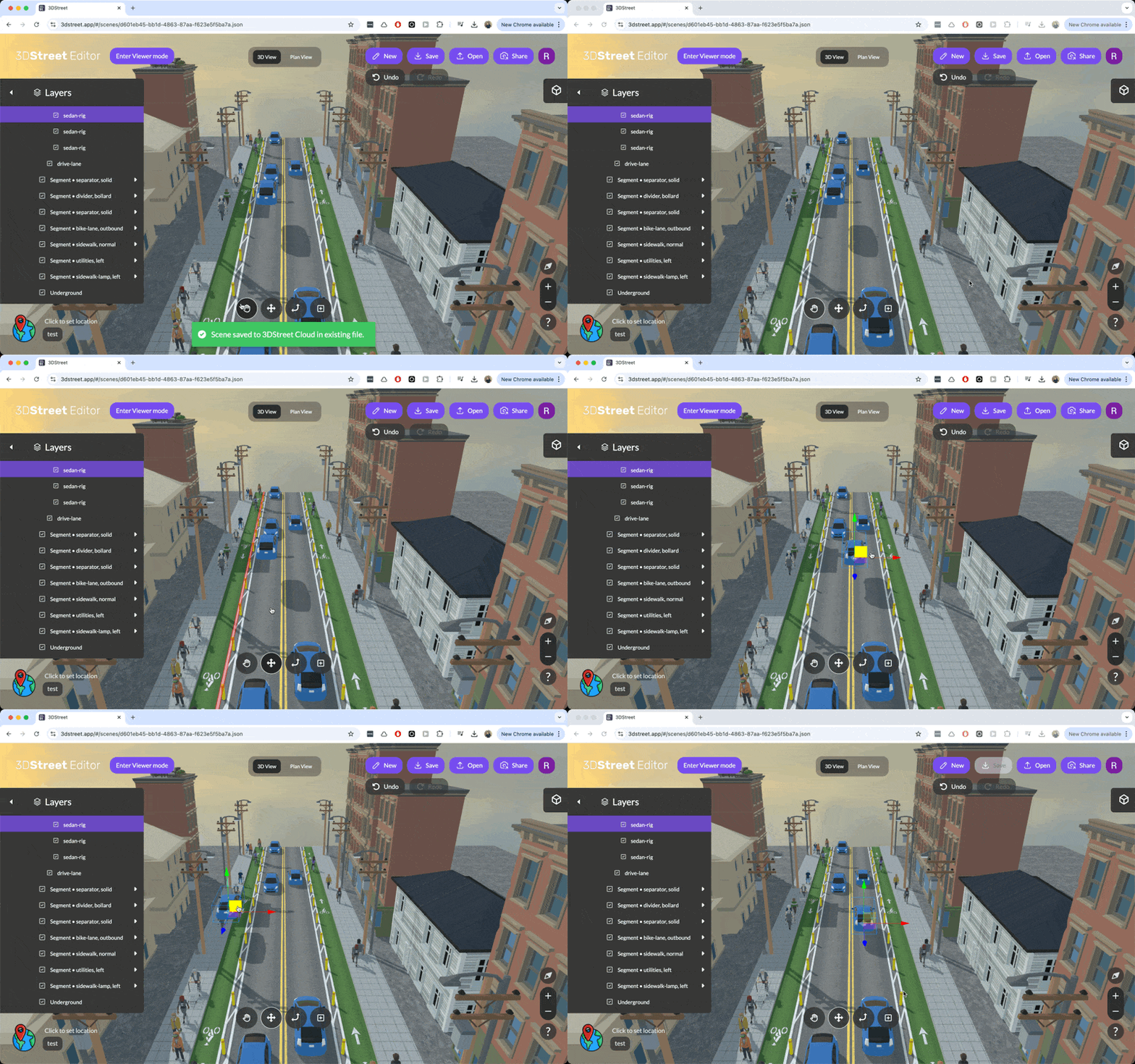
This method allows for more range of movement but can be harder to control. Click and drag the squares to move the object in any direction along 2 axes.
Rotate Tool
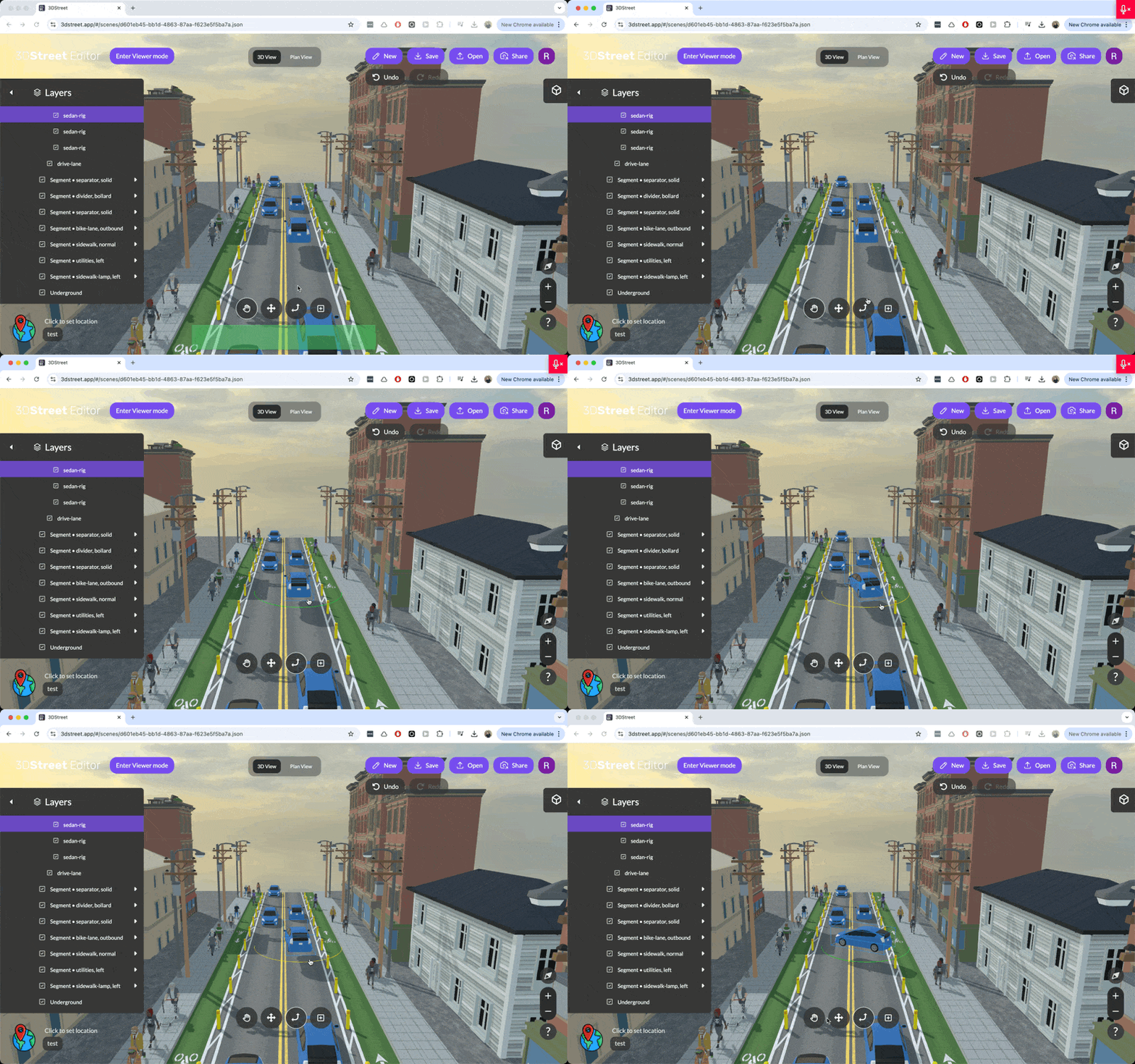
For rotation, click the Rotate Tool icon, click on an object to select it (if not already), then click and drag on the green arc around the object to rotate about the Y axis (yaw).
Using the Properties Panel to Change Position, Rotation, and More
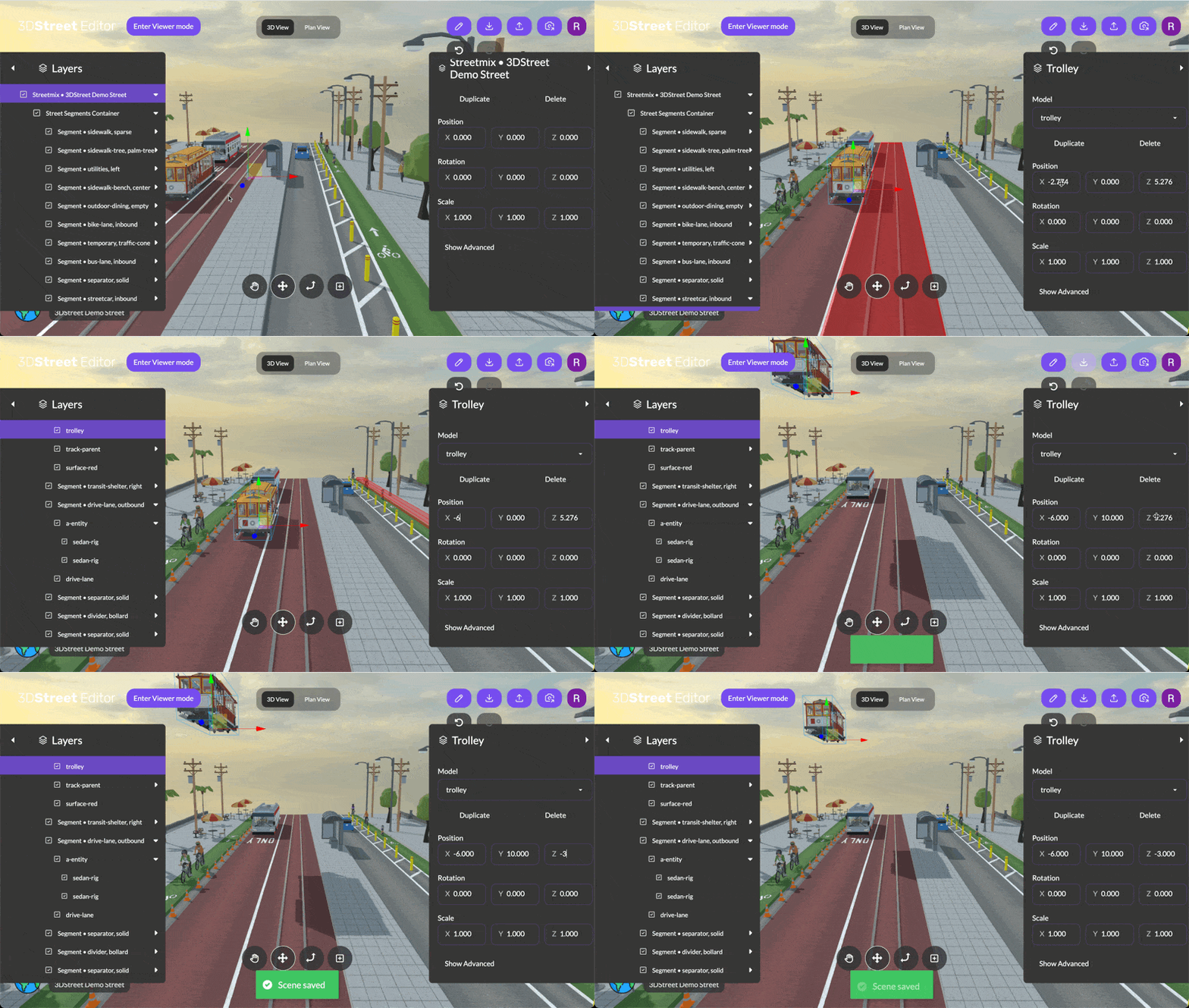
The properties panel lists all properties you can edit for any object in the scene. This includes position and rotation, but also includes many more properties about objects. You can edit an object's properties by clicking on an object to select it (if not already), then open the right-hand properties panel (if not opened already).
Position
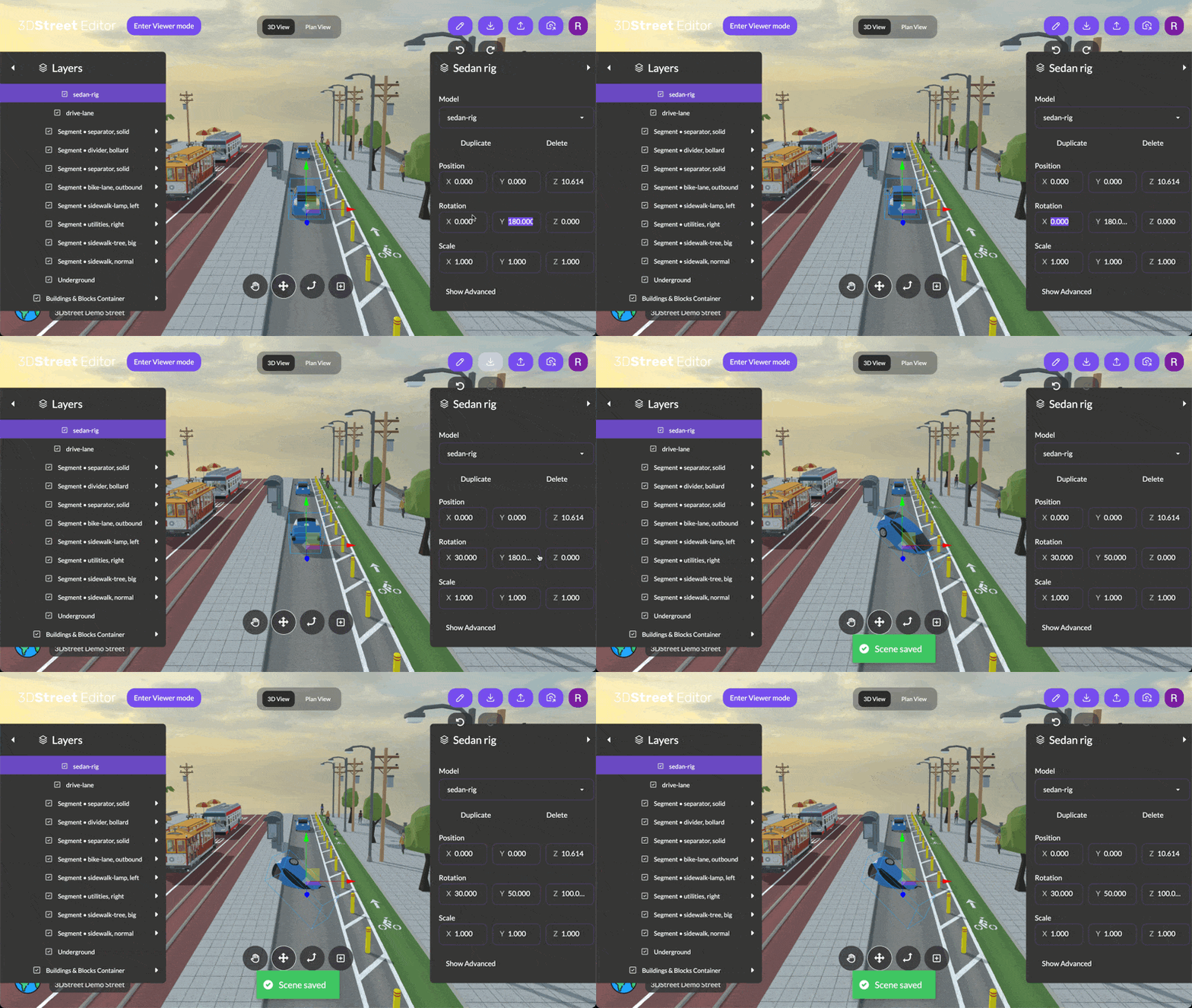
Rotation
Size
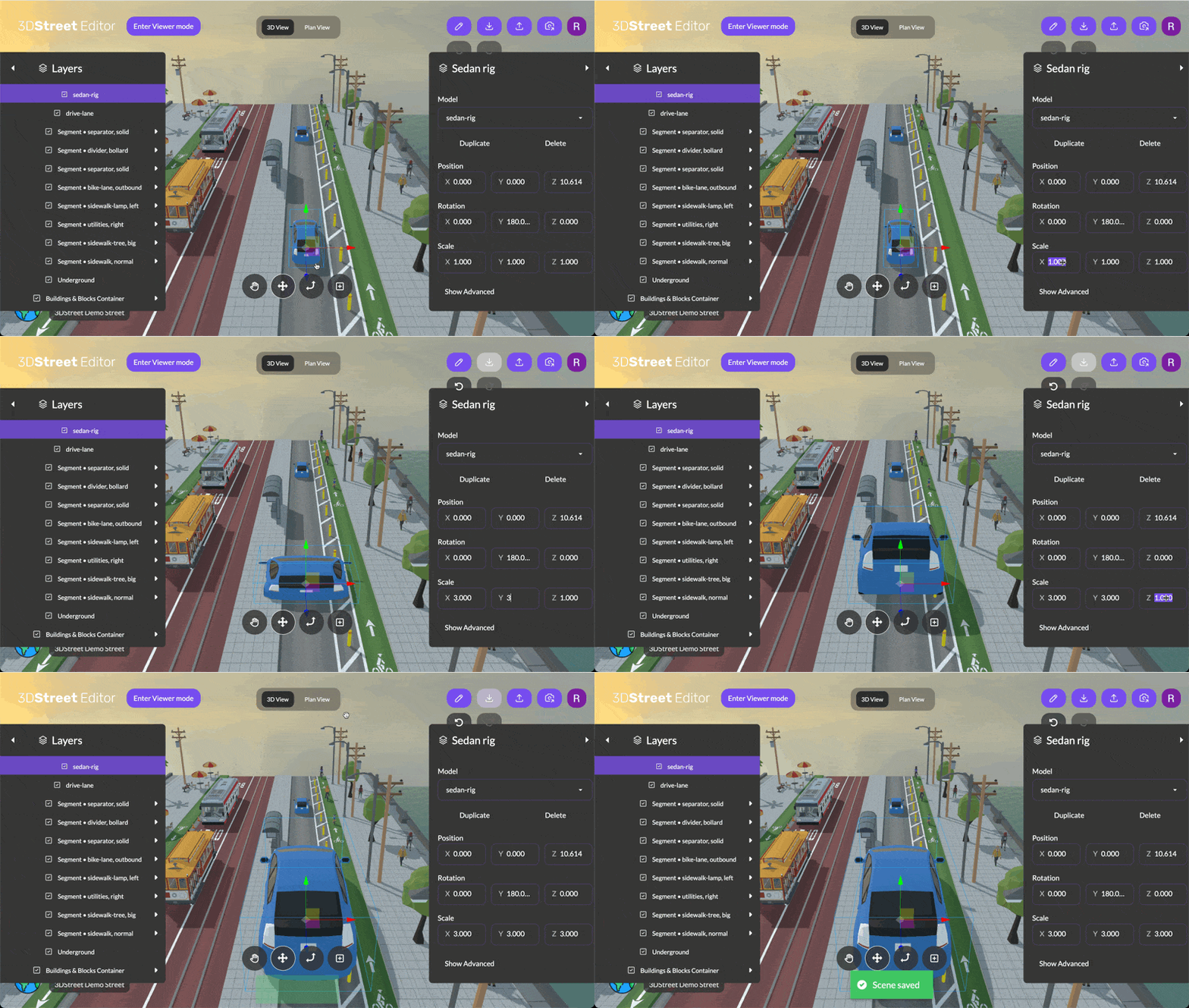
The size of an object can be edited in the properties panel using the scale properties
Change Object
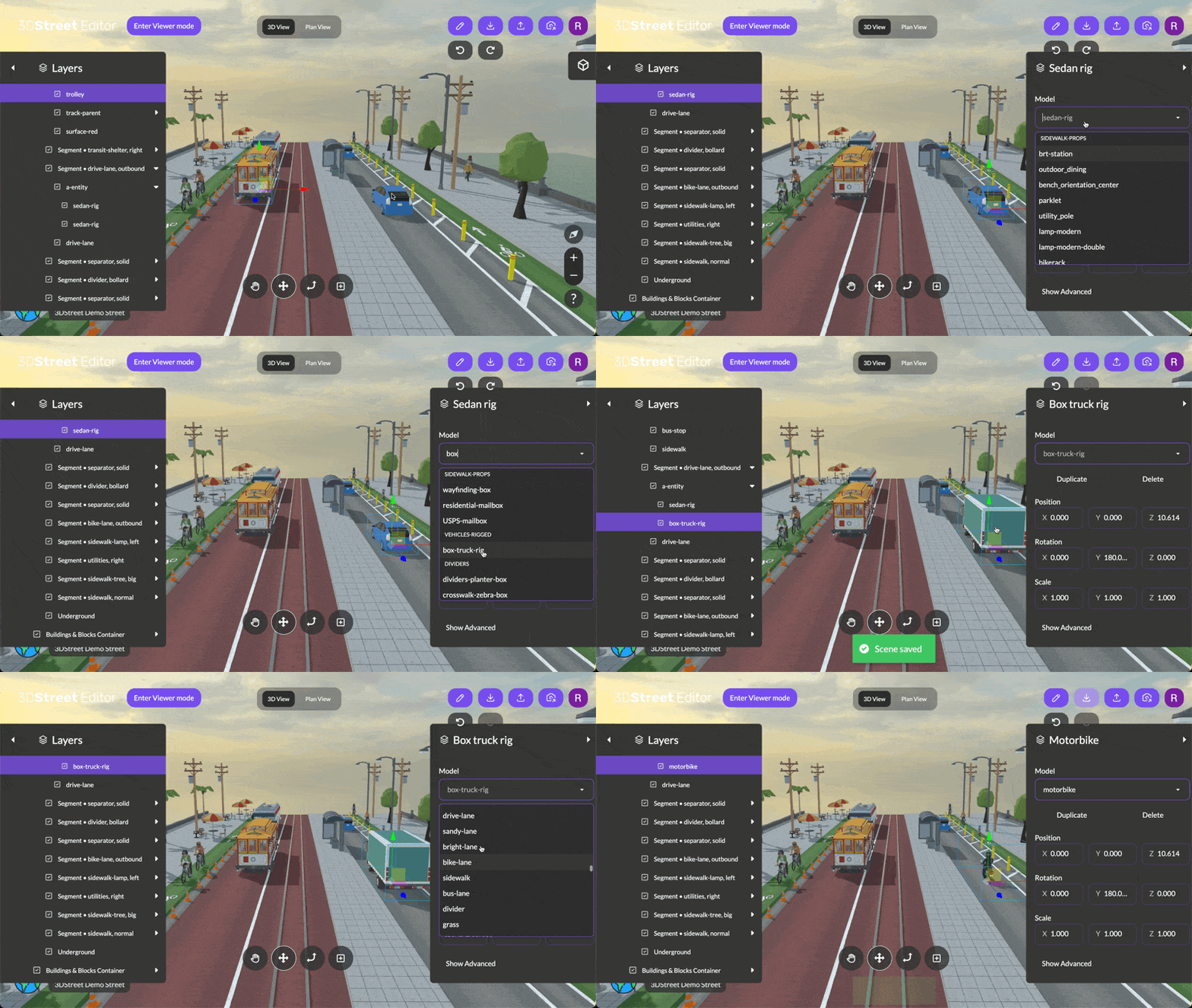
The type of object can be changed using the model selector in the properties panel. After clicking in the Model field you can start typing to search for a new model.
Advanced Properties
To edit additional properties on an object in the right-hand properties panel, scroll down and click "Show Advanced." Advanced properties may not work as expected and may cause unwanted issues with your scene, so you may want to save a copy of your scene before playing around with these.