Navigation
3DStreet Editor
Hand Icon
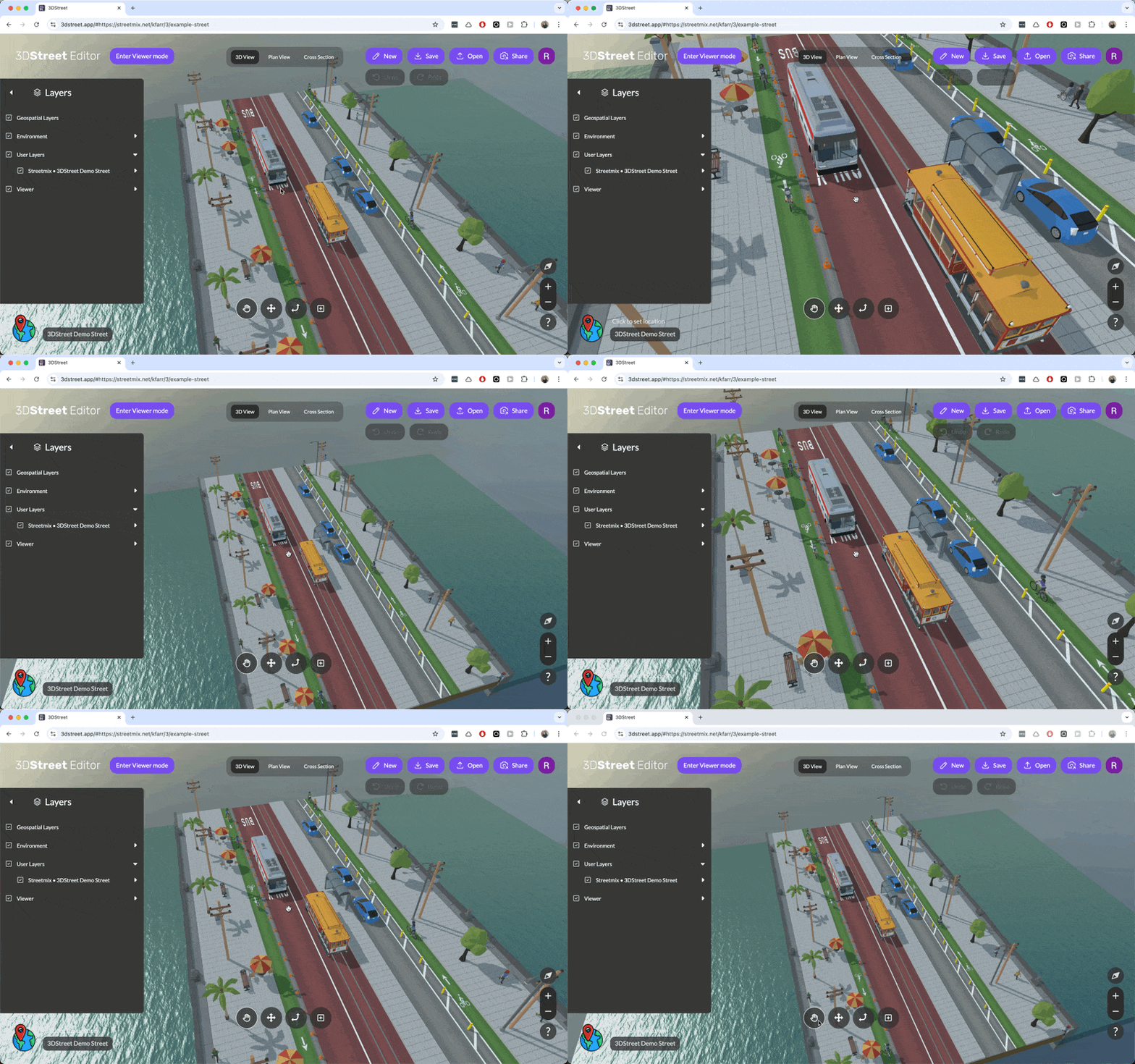
The hand icon allows you to click and drag to move around the scene without accidentally selecting an object.
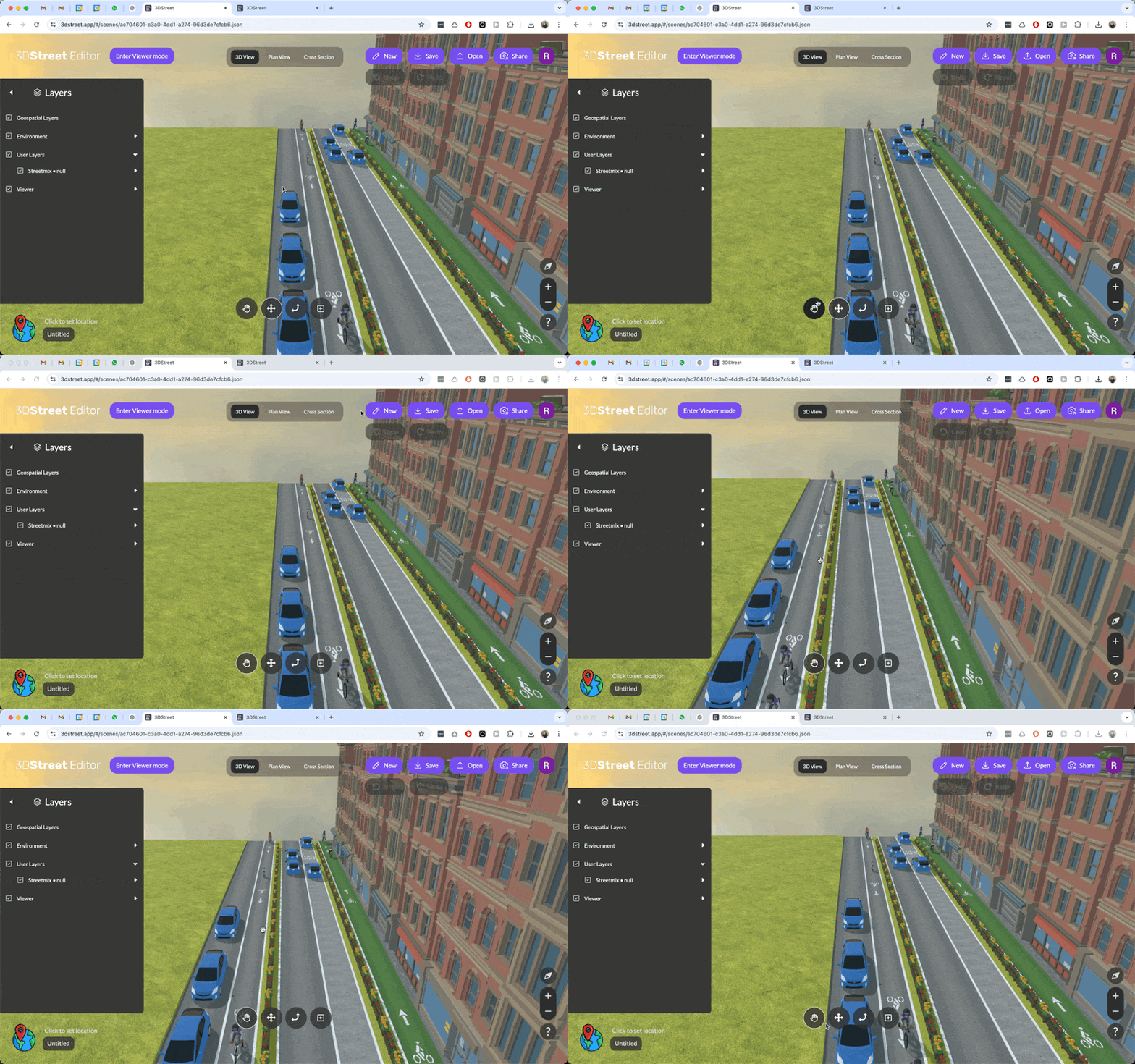
Panning
Click and drag to move around the scene.
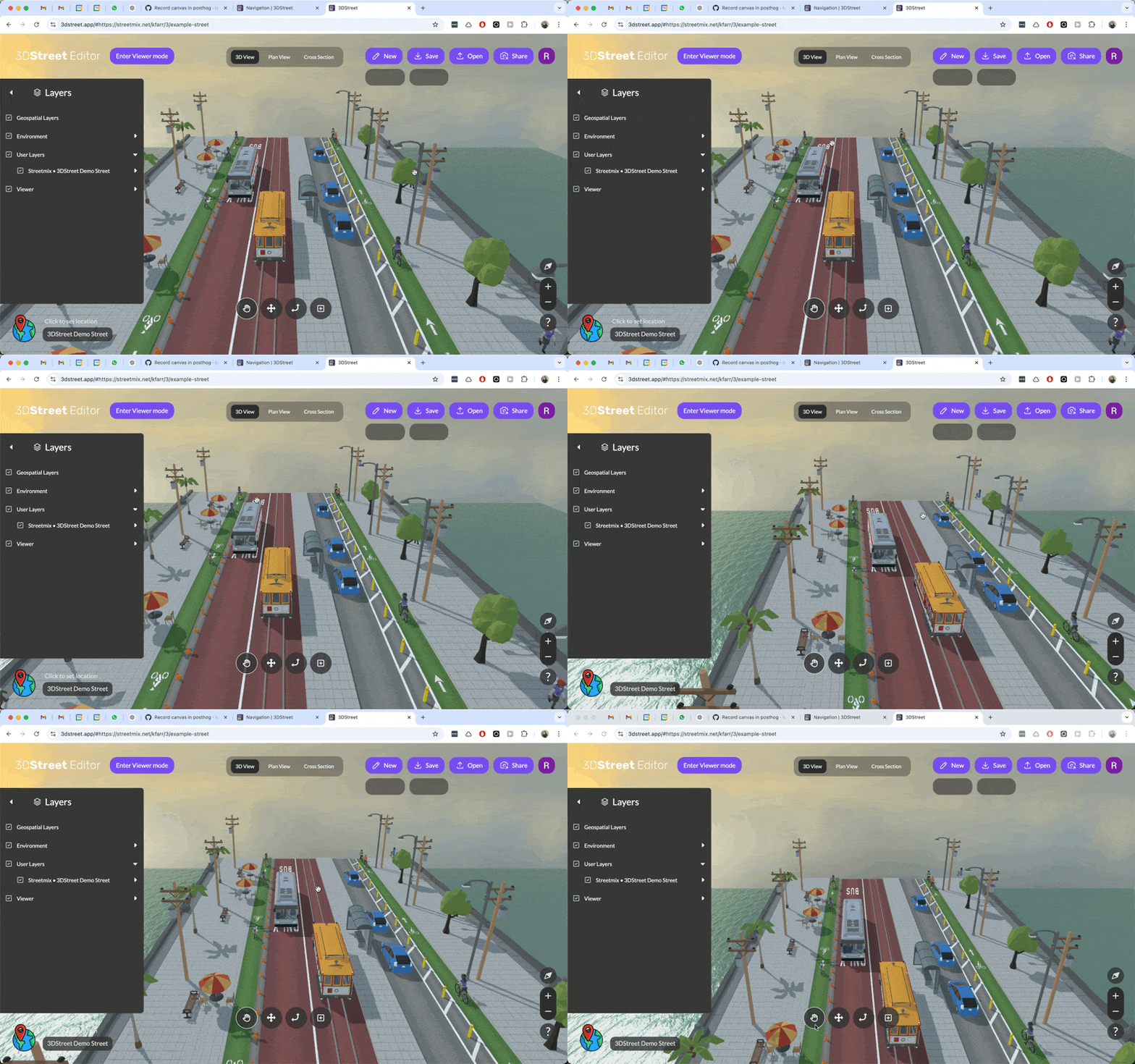
Rotation
Right click and drag to rotate while staying in place. (Hold SHIFT and click and drag if you have a trackpad.)
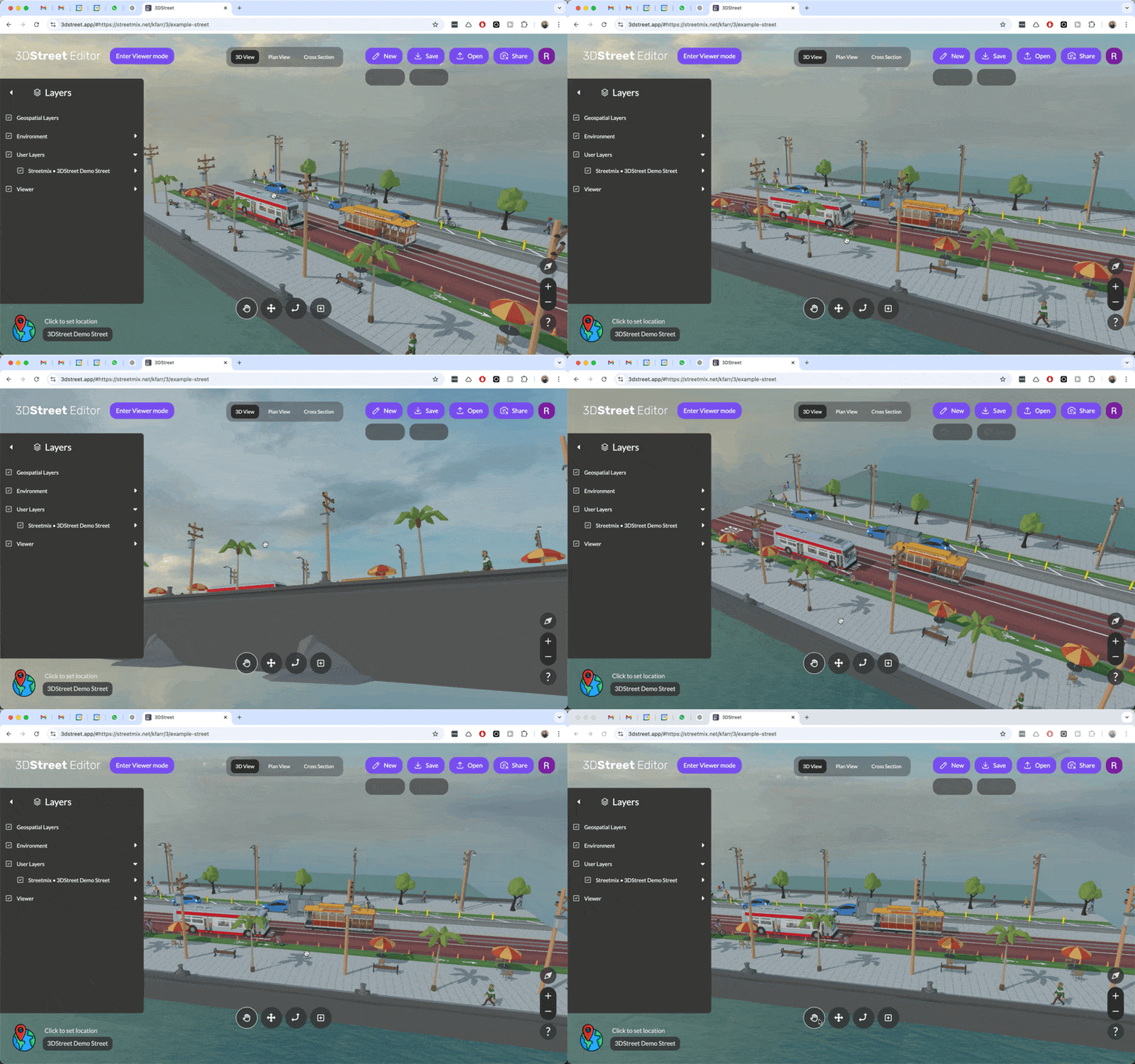
Zooming In and Out
With scroll wheel on your mouse move the wheel up and down. Or with trackpad use two fingers and move towards each other for a zoom in and move away from each other for zoom out.
Double Click
Double click on an entity in the scene graph or in the scene to fly the camera to that location.
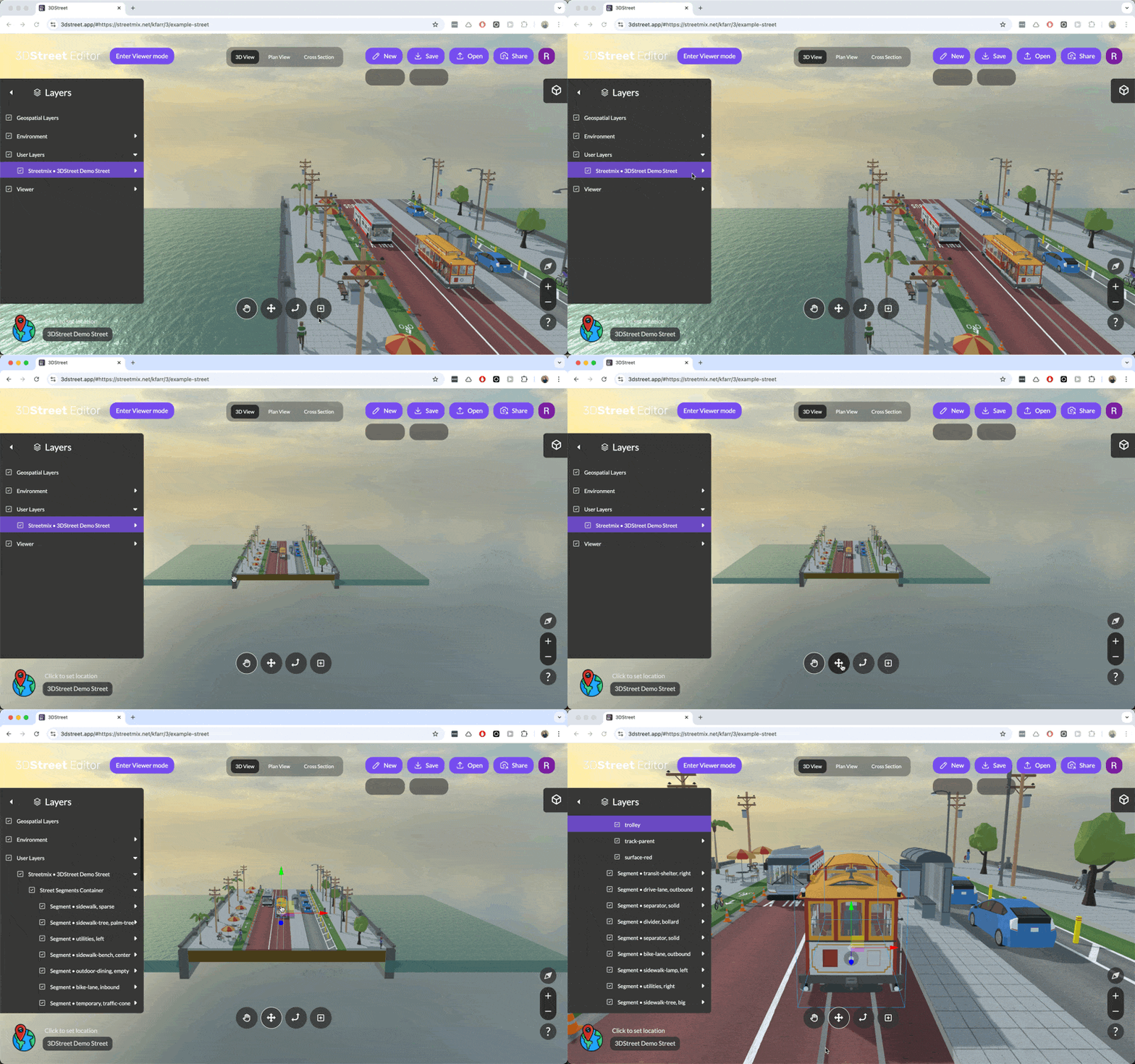
Lost? Double Click: If you get stuck or the camera gets lost in a strange position, try double clicking on an object to reset the camera. Double clicking an object is also a great way to quickly zoom into a specific area with more precision than using the scroll wheel.
Tell a Story: Double clicking to zoom to an entity is a great tool for presentations with stakeholders -- focus attention on key project areas from any prior camera position in a live presentation, or use a screen capture tool to record video animations.
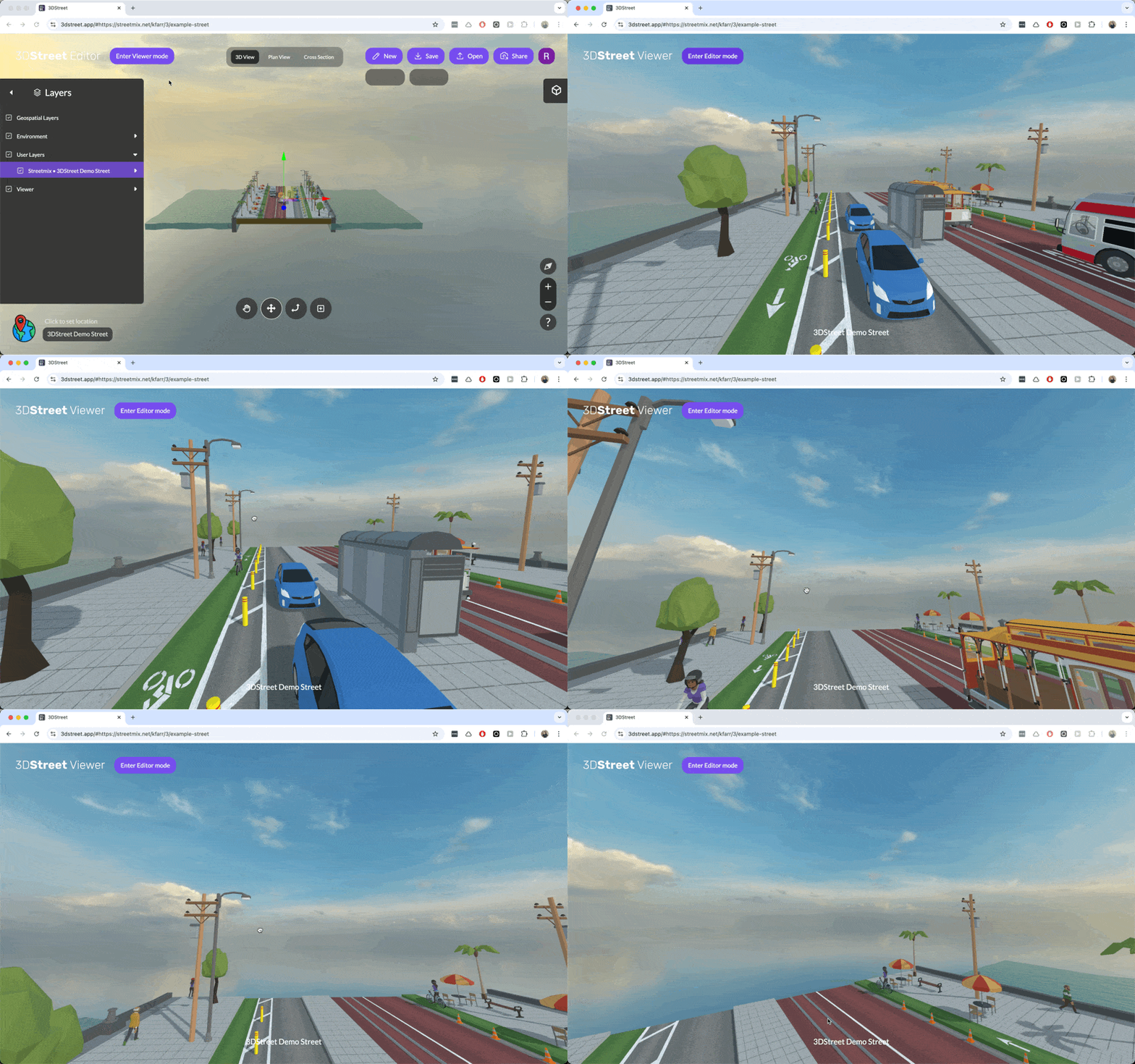
Viewer
Like “Streetview” this is how you can get a real-life perspective of your street scene from the ground level
To move use arrows / wasd or click once on a point on the ground and you will teleport to that location. Even fly around if you’re feeling adventurous.